What Is Samsung Password Manager?
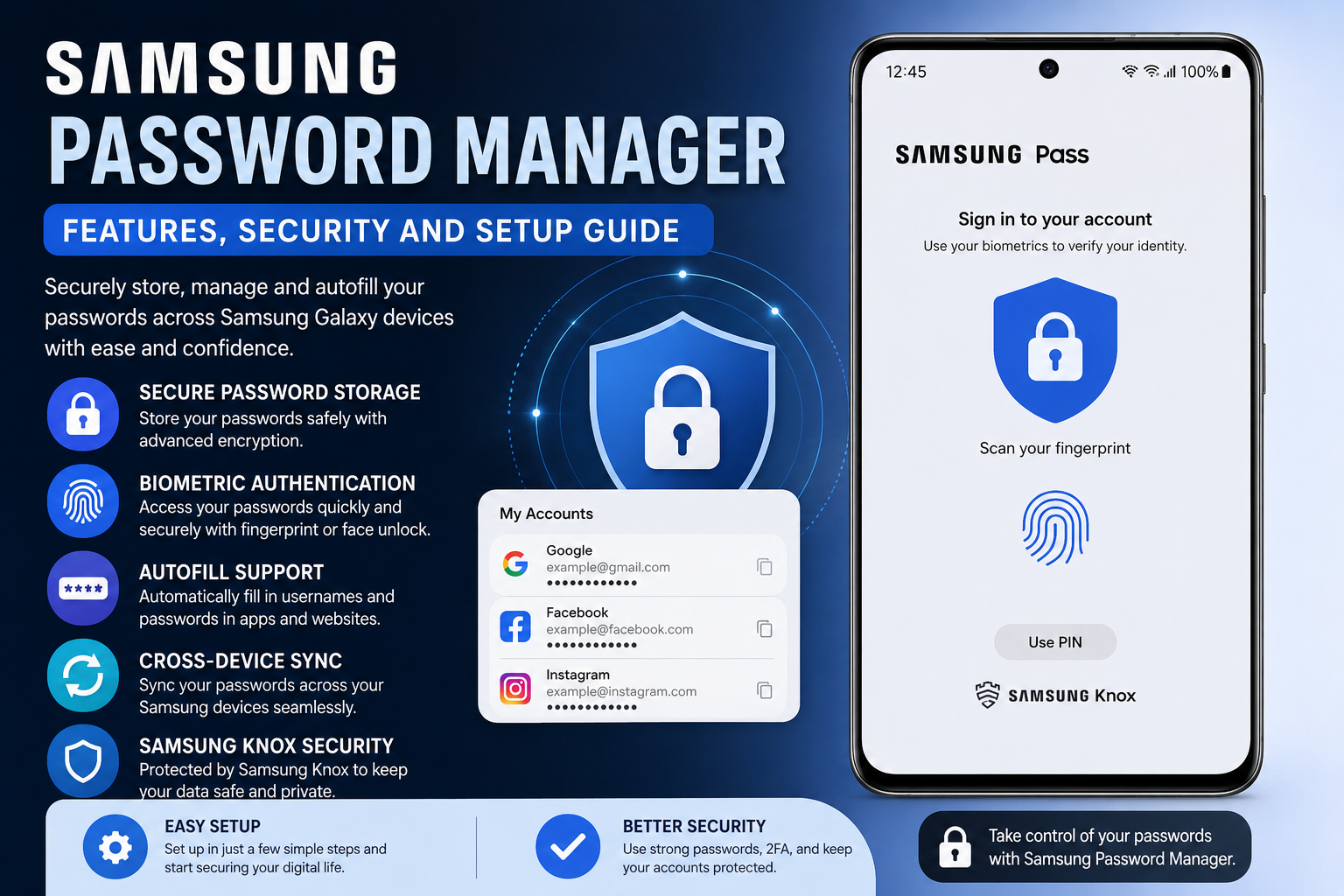
Samsung Password Manager is Samsung’s built-in password management system available on Galaxy devices. It is commonly powered through Samsung Pass and integrated with Samsung Wallet on newer devices.
The feature allows users to:
- Store usernames and passwords securely
- Autofill login details in apps and browsers
- Use biometric authentication for faster access
- Sync credentials across Samsung devices
- Improve account security with encrypted storage
Instead of manually typing passwords every time you sign in, samsung password manager securely remembers your credentials and fills them in when needed.
This feature works especially well for Samsung Galaxy smartphone and tablet users who want a simple and integrated password management solution.
How Samsung Password Manager Works
Samsung Password Manager works by securely storing your login information inside Samsung’s encrypted environment. When you visit a website or open an app, the system can automatically detect login fields and offer autofill suggestions.
The process usually works like this:
- You log into an app or website
- Samsung Password Manager asks whether you want to save the credentials
- The details are encrypted and stored securely
- Next time you visit the same service, autofill becomes available
- Biometric verification confirms your identity before login
Supported biometric methods include:
- Fingerprint recognition
- Facial recognition
- PIN or pattern backup authentication
This combination of encryption and biometric verification helps balance convenience and security.
Main Features of Samsung Password Manager
samsung password manager includes several useful features designed for modern smartphone users.
Secure Password Storage
The tool stores passwords in an encrypted environment using Samsung Knox security technology. This helps protect sensitive login details from unauthorised access.
Key benefits include:
- Encrypted credential storage
- Secure login management
- Reduced need to remember passwords
- Lower risk of password reuse
Biometric Authentication
One of the most useful features is biometric login support.
Instead of typing long passwords, users can sign in using:
- Fingerprints
- Facial recognition
- Secure PIN authentication
This makes logging into apps faster while maintaining account security.
Autofill Support
samsung password manager supports autofill across many apps and websites.
This feature helps users:
- Save time when signing in
- Avoid typing errors
- Create stronger passwords
- Improve overall user experience
Autofill works in:
- Samsung Internet Browser
- Compatible Android apps
- Selected third-party browsers
Samsung Knox Security Integration
Samsung Knox is Samsung’s mobile security platform. It adds another protection layer for stored passwords and sensitive data.
Samsung Knox helps:
- Protect against malware
- Secure sensitive information
- Prevent unauthorised device access
- Monitor device security status
This is one reason many Galaxy users trust Samsung Password Manager for everyday account protection.
Cross-Device Syncing
Users with multiple Samsung devices can sync passwords across supported products linked to the same Samsung account.
For example:
- Galaxy smartphones
- Samsung tablets
- Some Samsung laptops
This makes account access more convenient when switching between devices.
Is Samsung Password Manager Safe?
Security Features Explained
Samsung Password Manager is generally considered safe for most everyday users. The system uses several advanced security technologies designed to protect personal data.
Important security features include:
| Security Feature | Purpose |
|---|---|
| Samsung Knox | Device-level security protection |
| Encryption | Protects stored passwords |
| Biometrics | Verifies user identity |
| Secure Authentication | Reduces unauthorised access |
| Device Lock Integration | Adds extra protection |
Samsung also stores sensitive information in a secure environment separated from standard app data.
Potential Limitations
While Samsung Password Manager is secure, no password manager is completely risk-free.
Potential limitations include:
- Limited compatibility outside Samsung devices
- Dependence on Samsung ecosystem
- Risks if device security is compromised
- Some websites may not support autofill correctly
Users should still follow strong security practices such as enabling two-factor authentication whenever possible.
How to Set Up Samsung Password Manager
Setting up Samsung Password Manager is usually straightforward.
Step 1: Sign Into Your Samsung Account
Before using the service, you need an active Samsung account.
To check:
- Open Settings
- Tap your Samsung profile
- Sign in or create an account
Step 2: Enable Samsung Pass or Samsung Wallet
Depending on your Galaxy device version:
- Open Samsung Wallet
- Or open Samsung Pass
Then follow the setup instructions.
Step 3: Register Biometrics
You will usually need to register:
- Fingerprint recognition
- Face unlock
- Backup PIN
This improves account protection and enables secure autofill.
Step 4: Enable Autofill Services
To activate password autofill:
- Open Settings
- Go to General Management
- Tap Passwords and Autofill
- Select Autofill Service
- Choose Samsung Pass
Once enabled, autofill suggestions should appear automatically.
How to Use Samsung Password Manager
Saving Passwords
When logging into a supported website or app, Samsung Password Manager will often ask whether you want to save the credentials.
Simply tap:
- Save
- Confirm authentication
The password is then securely stored.
Autofilling Login Information
When returning to a saved website or app:
- Tap the username or password field
- Choose the saved account
- Verify your identity using biometrics
- Autofill completes automatically
This process is quick and reduces login frustration.
Managing Stored Passwords
You can view or manage saved credentials through Samsung Pass or Samsung Wallet settings.
Options typically include:
- Viewing saved accounts
- Updating passwords
- Removing outdated logins
- Managing autofill permissions
Samsung Password Manager vs Google Password Manager
Many Android users compare Samsung Password Manager with Google Password Manager.
Here is a simple comparison table.
| Feature | Samsung Password Manager | Google Password Manager |
|---|---|---|
| Galaxy Device Integration | Excellent | Good |
| Cross-Platform Support | Limited | Better |
| Biometric Login | Yes | Yes |
| Browser Compatibility | Moderate | Strong |
| Samsung Knox Security | Yes | No |
| Works Outside Samsung Devices | Limited | Yes |
| Autofill Support | Good | Excellent |
Which One Is Better?
The better option depends on your needs.
Choose Samsung Password Manager if you:
- Primarily use Samsung devices
- Prefer Samsung ecosystem integration
- Want Samsung Knox security features
Choose Google Password Manager if you:
- Use multiple Android brands
- Need broader browser compatibility
- Want stronger cross-platform syncing
Common Problems and Troubleshooting Tips
Even reliable password managers can occasionally experience issues.
Autofill Not Working
Possible fixes include:
- Update your Galaxy software
- Enable autofill permissions
- Restart the device
- Check Samsung Pass settings
Biometric Authentication Problems
If fingerprint or face recognition fails:
- Re-register biometrics
- Clean the fingerprint sensor
- Improve lighting for face unlock
- Update security settings
Passwords Not Syncing
Try the following:
- Check internet connection
- Verify Samsung account login
- Enable sync settings
- Restart the device
App Compatibility Issues
Some third-party apps may not fully support Samsung autofill features.
Possible solutions:
- Use Samsung Internet Browser
- Update the app
- Use manual password copy if necessary
Best Practices for Password Security
Using Samsung Password Manager is only one part of staying secure online.
Create Strong Passwords
Avoid weak passwords such as:
- 123456
- Password
- Birthdays
- Common words
Instead, use:
- Long phrases
- Mixed characters
- Unique passwords for every account
Enable Two-Factor Authentication
Whenever possible, enable two-factor authentication (2FA).
This adds another security layer by requiring:
- SMS verification
- Authentication apps
- Email confirmation
Keep Your Device Updated
Software updates often include important security patches.
Always:
- Install system updates
- Update Samsung apps
- Keep browsers current
Avoid Public Wi-Fi Risks
Public networks can increase security risks.
When using public Wi-Fi:
- Avoid sensitive logins
- Use VPN services if possible
- Enable secure connections
Who Should Use Samsung Password Manager?
Samsung Password Manager is a practical choice for:
- Samsung Galaxy users
- People who want simple password management
- Users who prefer biometric login
- Beginners looking for integrated security tools
It may not be ideal for users heavily invested in:
- Apple devices
- Cross-platform workflows
- Advanced enterprise password management
For everyday Galaxy users, however, it provides a convenient balance between usability and security.
Conclusion
Samsung Password Manager offers a secure and convenient way to manage passwords on Galaxy devices. With features such as biometric authentication, encrypted password storage, autofill support and Samsung Knox integration, it provides a reliable solution for users who want better account security without added complexity.
Its seamless integration within the Samsung ecosystem makes it especially useful for Galaxy smartphone and tablet owners. While it may not offer the same level of cross-platform compatibility as some dedicated password managers, it performs very well for users already using Samsung products daily.
By following good password practices and enabling additional security features such as two-factor authentication, users can significantly improve online account protection while enjoying faster and more convenient logins.
About the Author